Most of the work on a Linux server happens at the command line. So, getting to know the Linux command line and ways to list, find, update, run, troubleshoot and manage programs is critical.
I customise my Linux command line to help standardise and modernise, and add functionality. I prefer unobtrusive background changes, incrementally tweaking over time. Although it can be time-consuming to research and incorporate new tools or ways of doing things, I’m often on the lookout for what others do via blog posts or lists like https://github.com/awesome-lists/awesome-bash, https://python.libhunt.com/, or https://selfh.st/weekly/ (to go even further, something like chezmoi at https://www.chezmoi.io/links/articles/).
This post is part 1 of quality-of-life changes I make when I first log in to a new Linux server. I primarily use bash (though I also have zsh set up on some machines):
.hushlogin.inputrc.vimrc.bashrc
All these files live in my home directory - the starting directory when logging in. So, these changes only affect me.
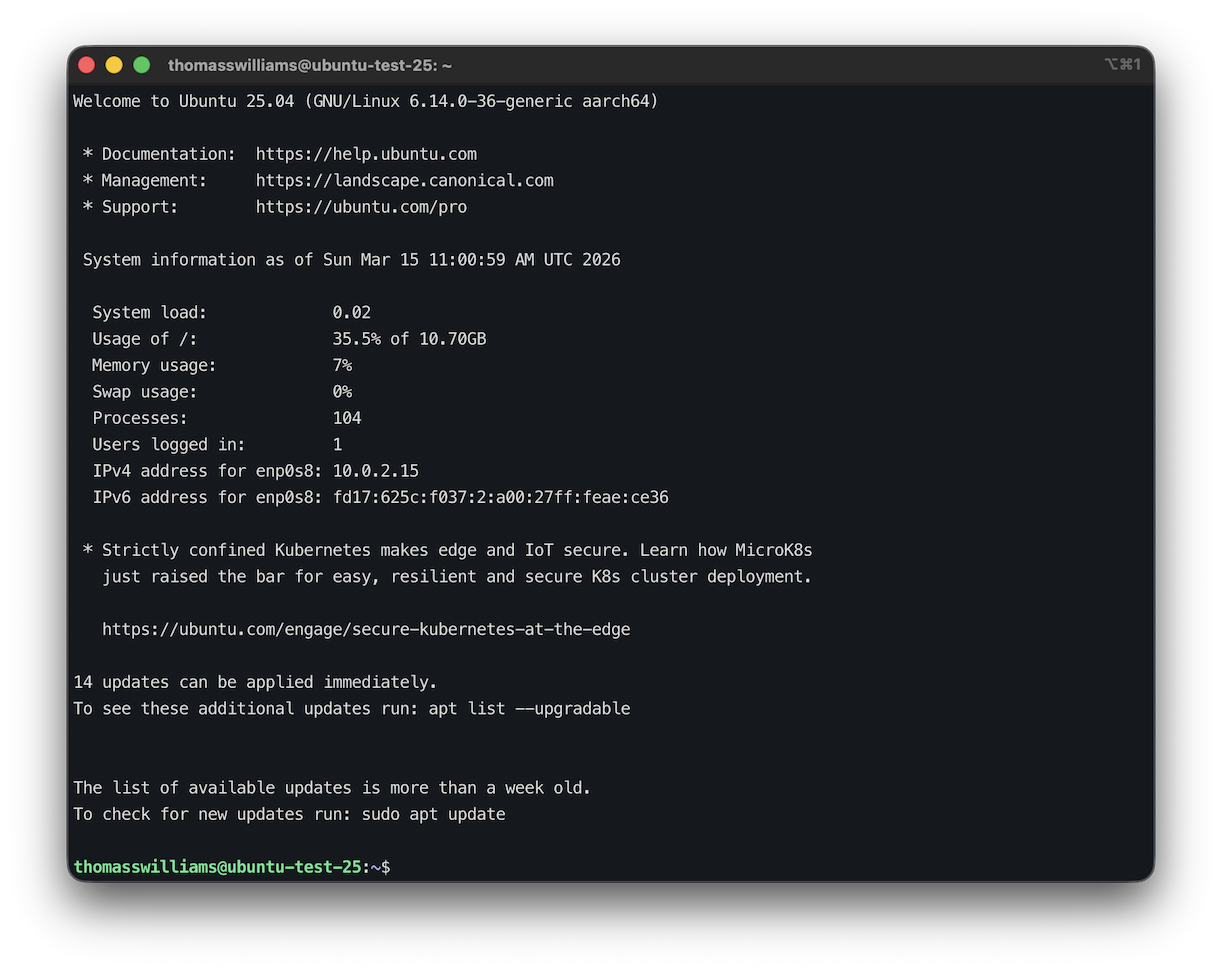
Here’s what it looks like when I initially log in to a new Ubuntu 25.04 server:
.hushlogin
First, I hide the “banner” (that big wall of text in the screenshot above) when I log in by creating an empty file called .hushlogin in my home directory, from the command line:
touch .hushlogin
This is slightly better - next time when logging in, I’ll go straight to a prompt.
.inputrc
I use .inputrc for two minor tweaks to the command line: better history autocomplete, and clearing the current input. With the changes in place, if I start typing a command then press the up or down arrow key, the history will autocomplete based on what has been typed so far e.g. typing “vi” and pressing up arrow will go through the history of previous “vi” commands. Pressing ESC (the escape key) will clear the current line (I keep forgetting the real shortcut to do so).
I create .inoutrc in my home directory if the file doesn’t exist. I need to log out and back in again so it will be picked up. Edit with vi e.g. vi .inputrc:
# Respect default shortcuts.
$include /etc/inputrc

## arrow up
"\e[A":history-search-backward
## arrow down
"\e[B":history-search-forward
## esc = clear whole line
"\e": kill-whole-line
Once the above is copy-pasted to vi, I save the file by pressing ESC, then entering “:wq” (without the quotes).
.vimrc
Speaking of vi, I tend to use it because it’s always there, whether I’m using Ubuntu, Red Hat Linux, Debian, or even Solaris. My basic standard is to enable syntax highlighting.
Once again, I create .vimrc in my home directory if the file doesn’t exist and edit using vi (e.g. vi .vimrc):
syntax on
There’s plenty of references for .vimrc, for example https://linux101.dev/vim-editor/configure-vimrc/.
.bashrc
A lot can be done in .bashrc. I add the code below after whatever’s already in .bashrc (out of the box, the Ubuntu .bashrc is fairly comprehensive):
# set prompt, green username followed by blue current path
# based on Ubuntu default
PS1='\n[\[\033[01;32m\]\u@\h \[\033[01;34m\]\w\[\033[00m\]]\$ '

# ignore pwd, exit, quit, q etc. commands in bash history
HISTIGNORE="pwd:exit:quit:q:history:cls"
# add timestamps to history file (makes it easier to place certain commands on a date)
# doesn't affect arrow keys or "history" command
HISTTIMEFORMAT="%F %T "
# don't put duplicate lines or lines starting with space in the history
HISTCONTROL="ignoreboth"

# write to history immediately (not on logout) thanks to https://www.cherryservers.com/blog/a-complete-guide-to-linux-bash-history
PROMPT_COMMAND='history -a'

# don't write LESS history
export LESSHISTFILE=-

# increase history
HISTSIZE=5000
HISTFILESIZE=10000
After I’ve saved my changes to .bashrc in vi, back on the command line I run source ~/.bashrc to make the changes to .bashrc take effect straight away without needing to log out and back in.
My command line now looks a little cleaner with very little effort.
Personalising the Linux command line as I’ve demonstrated is simple and does not impact other users. In part 2, I’ll go further and change the directory listing command, the default “write a file to the screen” command called cat, and a couple other things - stay tuned.